
Troubleshooting and Tips for Connecting Monarch to a School Network
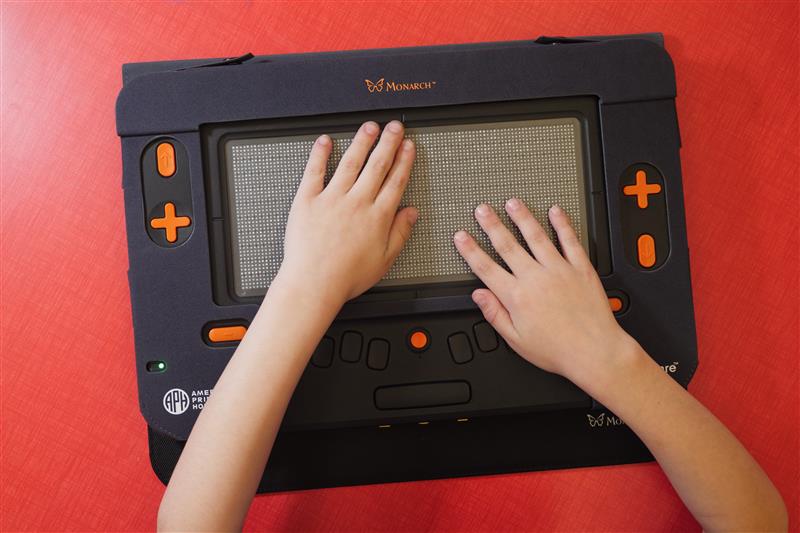
With the new school year approaching, it can be exciting to think about bringing new technology into the classroom. For some students and teachers, this fall may be their first year with a Monarch in the classroom, and for others, it may be time to reconnect a whole classroom of Monarchs to the newly updated school Wi-Fi network. “Connecting the Monarch to Wi-Fi is where you get to a lot of the sweet stuff. Students can send and receive messages, download documents, exchange files with teachers, share drawings with their peers, and collaborate easily on assignments − the sweet stuff,” said APH’s Technical Quality Assurance Supervisor, Joe Hodge. Our technical support team has developed a series of steps, tips, and tricks, to ensure connecting your Monarch is a smooth process.
Steps to Connect
Standard Network
- Turn on your Monarch, and ensure the date and time are correct.
- Press ‘enter’ with Q, (dots 12358) from anywhere on the Monarch, or select Settings from the All Applications menu located at the bottom of the Main Menu.
- Press ‘enter’ (dot 8) on Network and internet.
- Press ‘enter’ again on ‘Internet’.
- Use the down arrow key to select your Wi-Fi network and press ‘enter’.
- Type in your network password followed by ‘enter’.
- Press ‘enter’ on Connect. You should now be connected to Wi-Fi.
Portal Connection
If the network requires a portal to enter a username and password, the web browser, (Ecosia) will launch to allow you to enter your information.
- Use the down arrow key to navigate to the username/ID field, and press enter. Make sure computer Braille is selected by pressing backspace, spacebar, and G. Press enter once the information has been typed.
- Navigate to the Password field using the down arrow, and press enter. Type the password in computer braille and press enter.
- Navigate to “Log in” or “Sign in”: press enter.
- The device will connect if the information is correct.
If you need to connect manually, navigate to ‘Add Network’, and make sure you have access to the network name, security type, and password. If you do not have this information, be sure to contact your school’s Information Technology (IT) department for additional assistance. Once you are connected, you can return to Literary Braille by pressing backspace, space, G.
Troubleshooting Tips and Tricks
As with any advanced technology, there may be a few small quirks you run into while connecting your Monarch.
- Be sure to check that your Monarch is showing the correct date and time. Out of the box, the Monarch will not inherently know what time it is. Users will need to set up the time and date before making a Wi-Fi connection.
- Make sure Wi-Fi is toggled on, and that the Monarch is not in airplane mode, which disables all wireless activity.
- Make sure the Monarch is running the latest software update.
- If you are unable to update the Monarch while connected to a school network, try connecting it to a home network to update over the air.
- Communicate with your IT department to make sure you have all of the correct network login information.
Why Network Connection is Important
While students can enjoy so much of what the Monarch has to offer on or offline, connecting your device successfully to the school’s Wi-Fi is essential to unlocking all the learning opportunities with Monarch. “It is essential for students using the Monarch to have Internet access to use many of the Monarch’s features, including email correspondence, the ability to download books, and access to the Tactile Graphic Image Library, (TGIL). These features are core components of the Monarch user experience. Disruptions to Internet connectivity will degrade this user experience, which can lead to unwanted delays for students in the fast-paced school environment,” said APH’s Customer Service Technical Support Representative, Alyssa Henson.
For extra help on all things Monarch, download the Monarch FAQ document, or reach out to our dedicated Monarch support team. The team can be reached by phone at (833)447-8444, and by email at monarchsupport@aph.org.