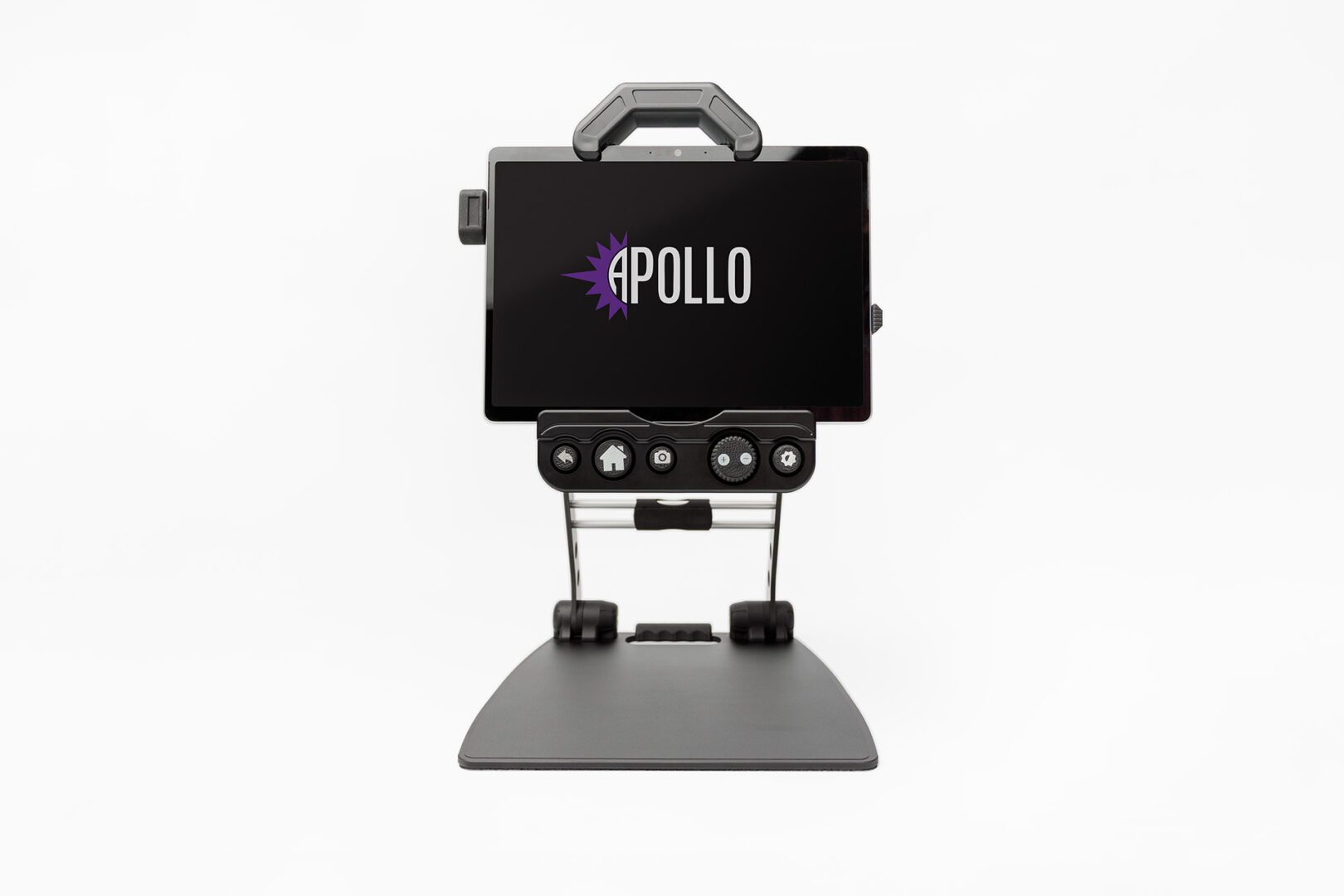
Apollo is a highly customizable, Windows-based video magnifier that helps students with low vision access classroom materials independently on a single device that lasts all day.
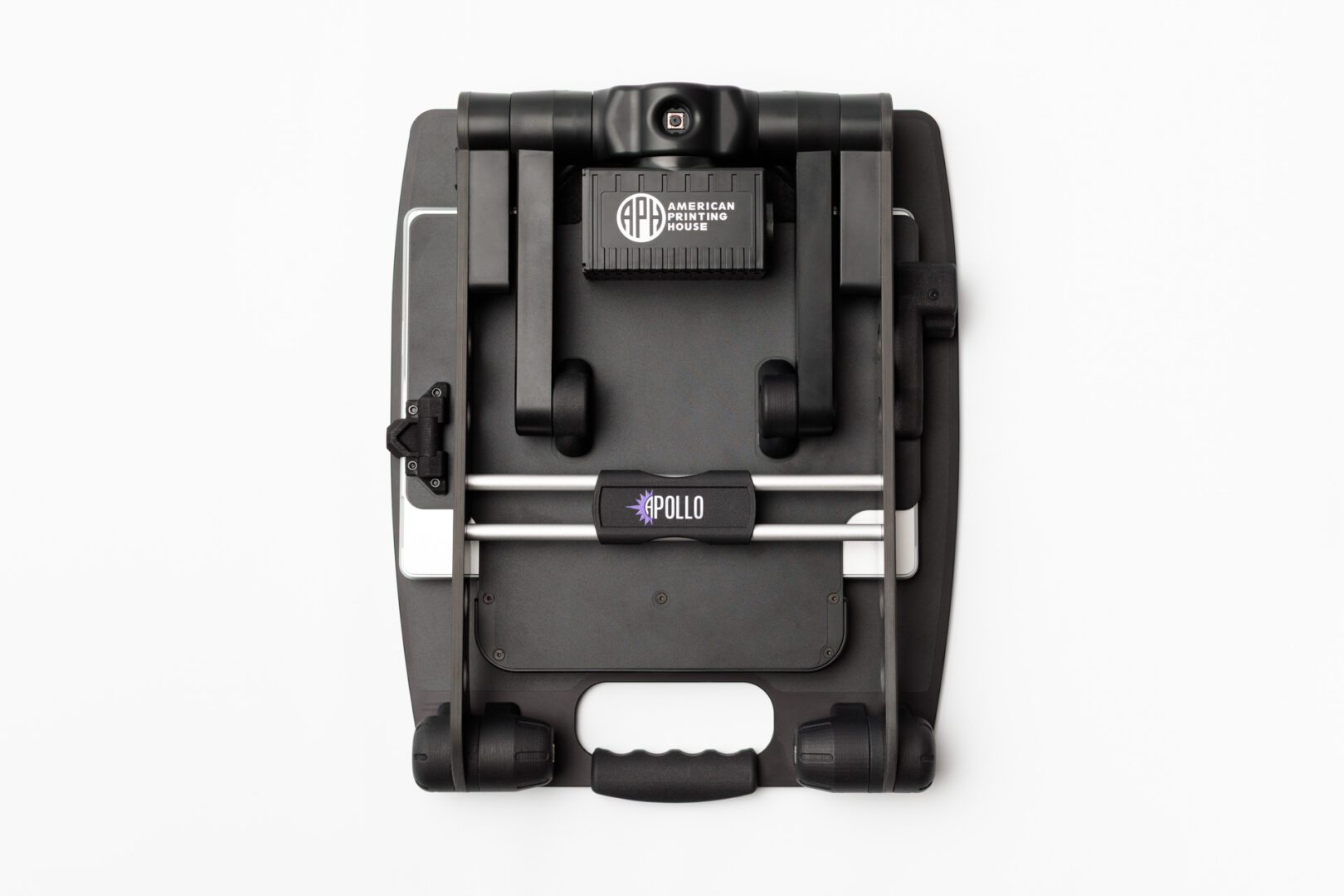
Apollo is a portable video magnifier designed to help students with low vision access classroom materials throughout the school day. Built around a Microsoft Surface tablet and Snapdragon-powered processing, it combines powerful magnification with the flexibility of a full Windows computer. Apollo includes adjustable cameras for viewing materials at a distance, reading printed text, and completing handwriting or close-up tasks. Its custom magnification software provides an intuitive viewing experience without subscription fees, while Windows integration gives students access to educational apps, websites, documents, and accessibility tools on a single device. The system’s portable design, articulated camera arms, integrated lighting, and durable construction support use across classrooms and learning environments. Efficient Snapdragon performance helps power the cameras, lighting, and computer functions while delivering the battery life needed to last through a full school day. Apollo promotes independence by reducing the need to switch between separate magnification and computing devices during instruction.
Microsoft Surface tablet that provides a complete Windows computing experience
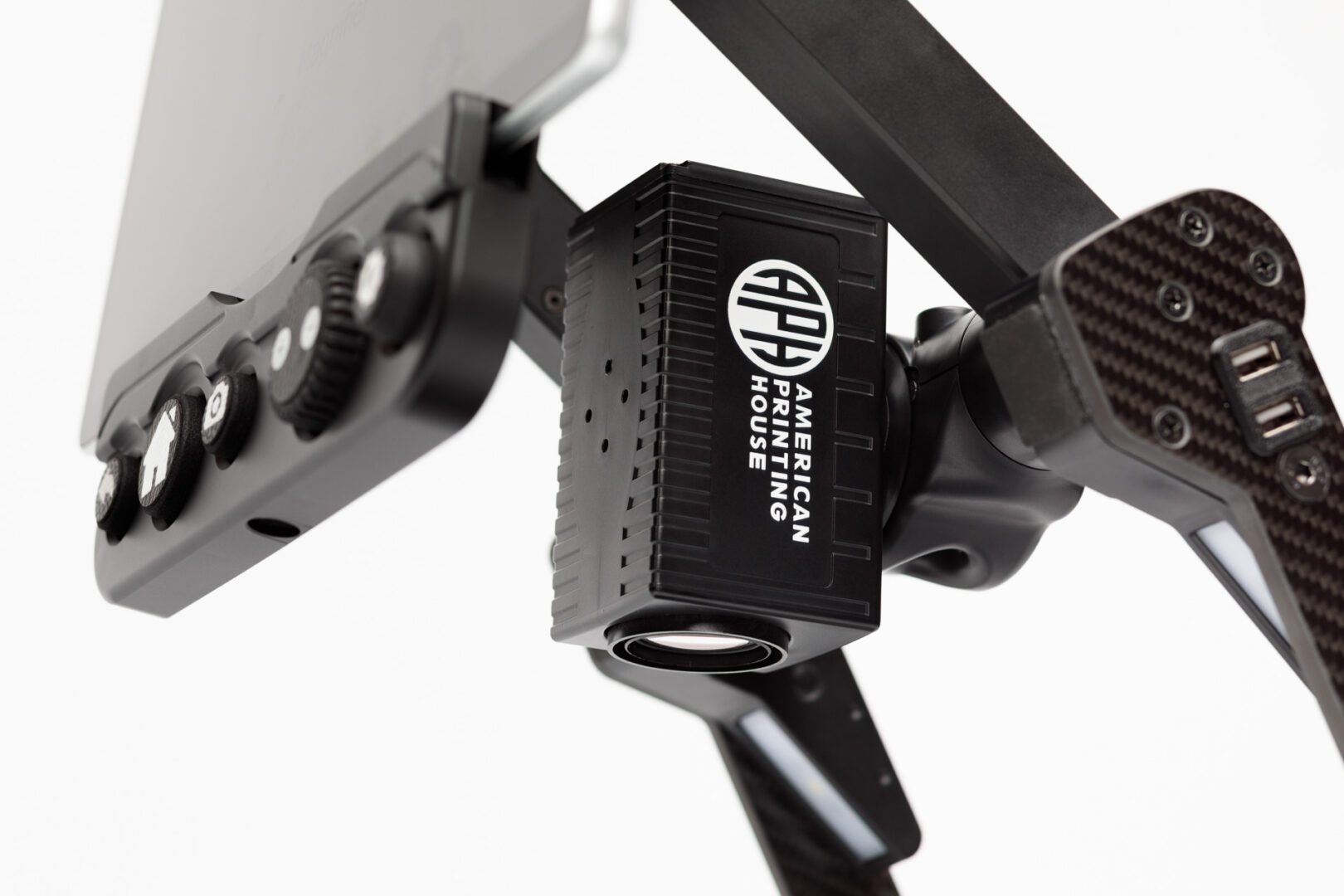
Adjustable camera for viewing both distant and close-up materials, with the ability to turn left and right
Dedicated handwriting camera for completing assignments while viewing written work at a comfortable magnification
Adjustable magnification, contrast, color, brightness, and viewing options
Articulated camera arms that can be repositioned for different classroom tasks
Snapdragon-powered performance for smooth camera and magnification functions
Battery life designed to last throughout the school day
Access to Windows applications, educational websites, documents, and built-in accessibility tools on one device
Apollo video magnifier stand
Microsoft Surface tablet
Surface tablet charging cable and power adapter
Keyboard with integrated trackpad
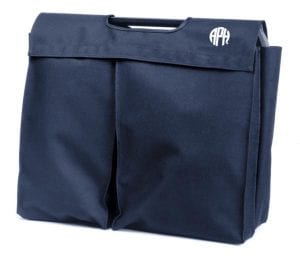
Apollo-branded carrying bag
“This device was designed very well. The quality of the camera was amazing!”
“The tablet connection and being an all-in-one device and the excellent camera would definitely be a perk for the Apollo.”
“A student can use one device for all of their learning needs.”
Apollo Frequently Asked Questions
Find answers about setting up Apollo, using its cameras and reading tools, working in Windows, and getting help.
Getting started
What is Apollo?
Apollo is a portable video magnifier built around a Microsoft Surface Pro tablet. It combines camera magnification, printed text recognition and reading aloud, and access to Windows applications. It can help with reading, writing, viewing classroom materials, and digital tasks.
What comes with Apollo?
The package includes the Apollo Portable Magnifier, power adapter, Apollo laptop bag, user manual, and Large Print Keyboard.
What should I do before using Apollo for the first time?
Fully charge the Surface Pro tablet, connect to Wi-Fi for updates and online features, and connect the Large Print Keyboard if needed. Clean the camera lens with a soft microfiber cloth.
How do I open and position Apollo?
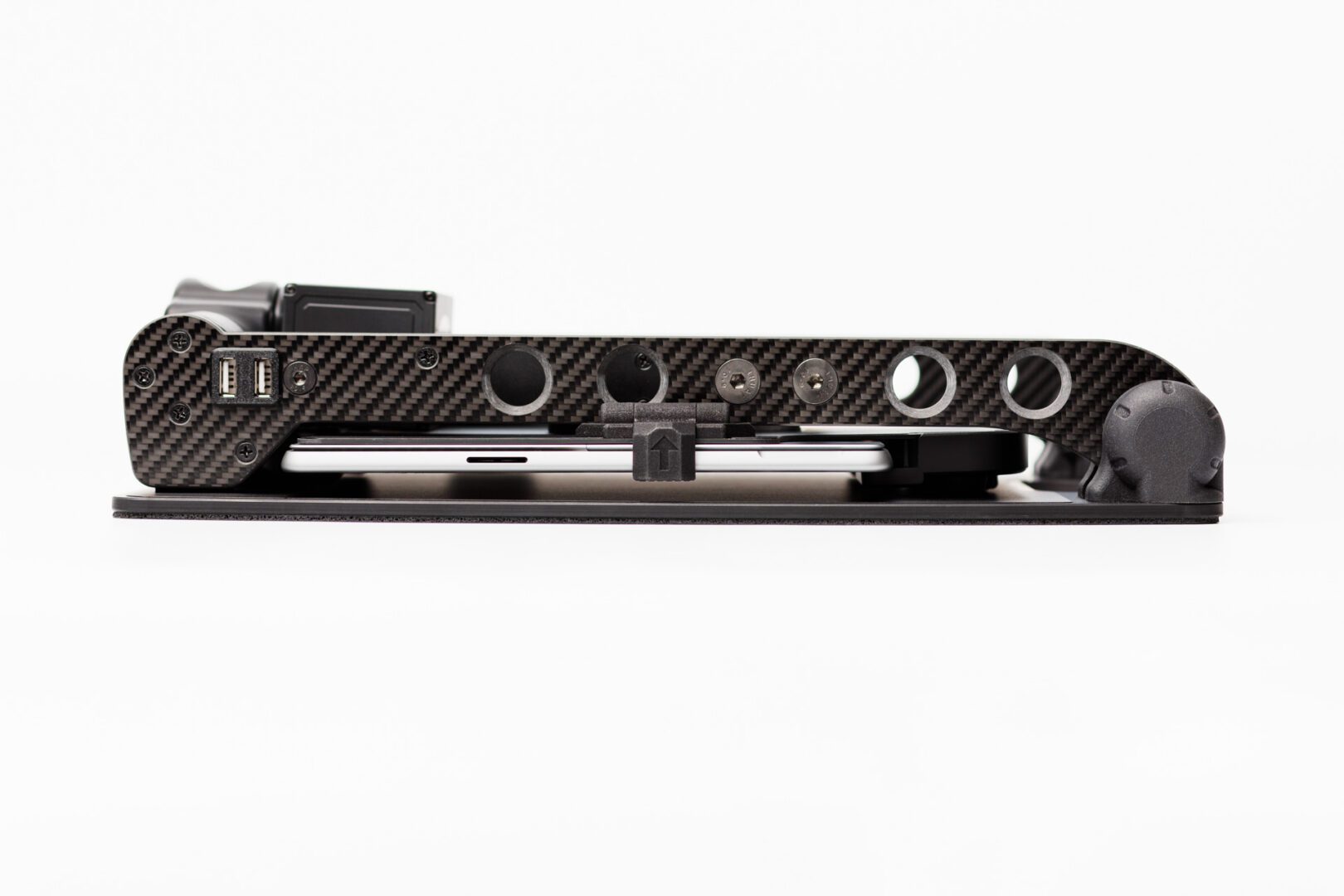
Place Apollo on a stable, flat surface. Hold the top section and gently lift the frame until the support arm is upright. Pull the display outward, support it with both hands, and adjust its angle. Rotate the top hinge forward to position the display above the reading table. Make sure the arm and display are securely positioned before use.
How do I turn Apollo on and complete setup?
Press the power button on the Surface tablet and wait for Apollo to load. Follow the Setup Wizard to choose colors, magnification, speech, voice rate, pointer settings, startup preferences, Wi-Fi, and Bluetooth keyboard pairing. The wizard normally runs only during first-time setup.
How do I shut down and fold Apollo for transport?
Press the power button on the top left corner to shut the system down. To fold the unit, align the magnetic points, gently guide the display inward, and support the lower frame while lowering the upper section. Fold the arm toward the center frame and press gently until the unit is fully folded and securely closed. See the manual illustrations for the folding sequence.
Camera viewing and magnification
What are the three cameras used for?
The Main Camera is for viewing books and documents, whiteboards, presentations, classrooms, and distant objects. The OCR Camera is for printed documents and text recognition. The Handwriting Camera supports writing, signing documents, and viewing handwritten materials.
How much camera magnification does Apollo provide?
Camera magnification ranges from 1x to 20x. Optical zoom operates from 1x to 8x; digital zoom operates from 8x to 20x.
How do I change magnification?
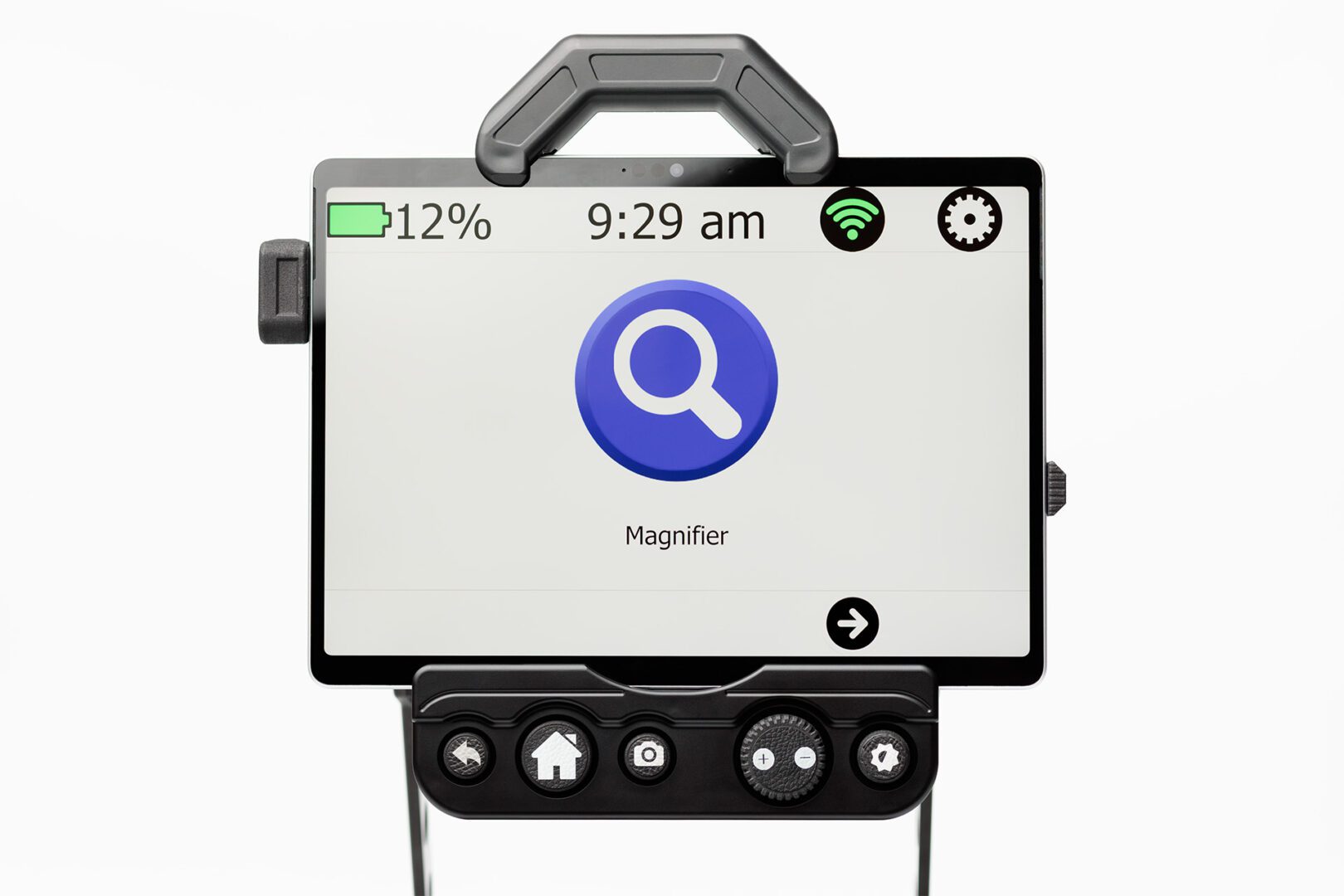
In the Magnifier, select the on-screen + or – controls, or turn the Zoom Wheel. Turn clockwise to increase magnification and counterclockwise to decrease it.
How do I change the viewing colors?
Turn the Color Wheel to cycle through the available modes, or tap the palette icon. Press the Color Wheel once to return to the original viewing mode. Options include original color, grayscale, black on white, white on black, and several other high contrast combinations.
Can I freeze and save an image?
Yes. The Snapshot Button captures and freezes an image. Use Save Images in the Magnifier to save captured content. Open the Saved Images folder or Gallery to review it. Camera images are stored in C:\Users\Apollo\Pictures\Apollo.
What should I check if a camera image is difficult to see?
Check the selected camera, its position, and the document placement. Clean the lens with a soft microfiber cloth and adjust zoom and color settings. In OCR Camera view, use the LED controls to change illumination. In camera Split Screen, tap the area you want to focus on; the focus square turns green when focus is achieved.
Reading aloud and writing
Can Apollo read printed text aloud?
Yes. Optical Character Recognition, or OCR, converts printed text into digital text that Apollo can display and read aloud. Place the page on the Base Plate, rotate the camera 90 degrees toward the document as illustrated in the manual, and select OCR Camera. Position the page so the entire document is clearly visible, then select OCR.
How do I control reading after OCR recognizes a page?
Use Play/Pause to start or pause speech. Previous Paragraph and Next Paragraph move through the recognized text. You can also change magnification, viewing colors, the text highlight color, and the OCR display mode.
When should I use Text Mode or Graph and Chart Mode?
In OCR Camera view, Text Mode optimizes the image for paragraphs, books, and documents. Graph and Chart Mode optimizes the image for graphs, charts, tables, and other detailed visual content. Select OCR when you want to convert printed text into digital text.
Can Apollo help me write or sign a document?
Yes. Adjust the camera position, document placement, and zoom until the writing area is clear. The main camera helps working on documents in a live format, the snapshot button allows users to snap a photo, then write using the touch screen, the handwriting camera provides further access for a user to write while using the main camera at a distance.
Can I view the board and my writing at the same time?
Yes. Split Screen shows the Main Camera and Handwriting Camera together. Tap either view to display its Function Bar, then adjust that camera’s zoom, colors, brightness, and other controls independently. Tap an area to focus; a green focus square confirms focus. Use the Split Screen control below the Camera icon to return to a single camera view.
Can I mark up an image?
Yes. Open Annotation to draw, write, highlight, circle information, or add text to an image. Tools include Pen, Text, Highlighter, Eraser, and Undo, with options for marker color and highlighter size. Save the image to keep your annotations. Annotation also includes OCR for text in the image.
Windows and navigation
Can I use Windows applications on Apollo?
Yes. Apollo runs Windows 11. To reach the Windows Desktop hold the Home button until you hear “Desktop,” then release it. Press Home from the Windows Desktop to return to the Apollo Magnifier.
Can I view the camera while working in Windows?
Yes. Split Window displays the Main Camera alongside Windows. Use the Zoom Wheel and Color Wheel to adjust the camera view. Use the on-screen + and – controls to magnify the Windows view from 1x to 16x. Press Back to return to the Magnifier.
How do I magnify the Windows Desktop?
After choosing entering Desktop, the Magnifier Control appears in the upper-left corner. Use its zoom and color controls, or use Apollo’s Zoom Wheel and Color Wheel. Windows screen magnification ranges from 1x to 16x. Press Back to close the Magnifier Control while remaining on the Windows Desktop.
How do I move around the screen when Windows is magnified?
Use the Touch Bars in the screen corners. Swipe up or down to move vertically and left or right to move horizontally. If the wireless keyboard and touchpad/mouse is connected these bars will disappear, and you can navigate with more screen space.
What does the Home button do?
Press Home once to switch between the Apollo Magnifier and Application Carousel. From the Windows Desktop, Home opens the Apollo Magnifier. To leave Apollo for the Windows Desktop, hold Home until you hear “Desktop,” then release it.
Can I connect accessories or a second monitor?
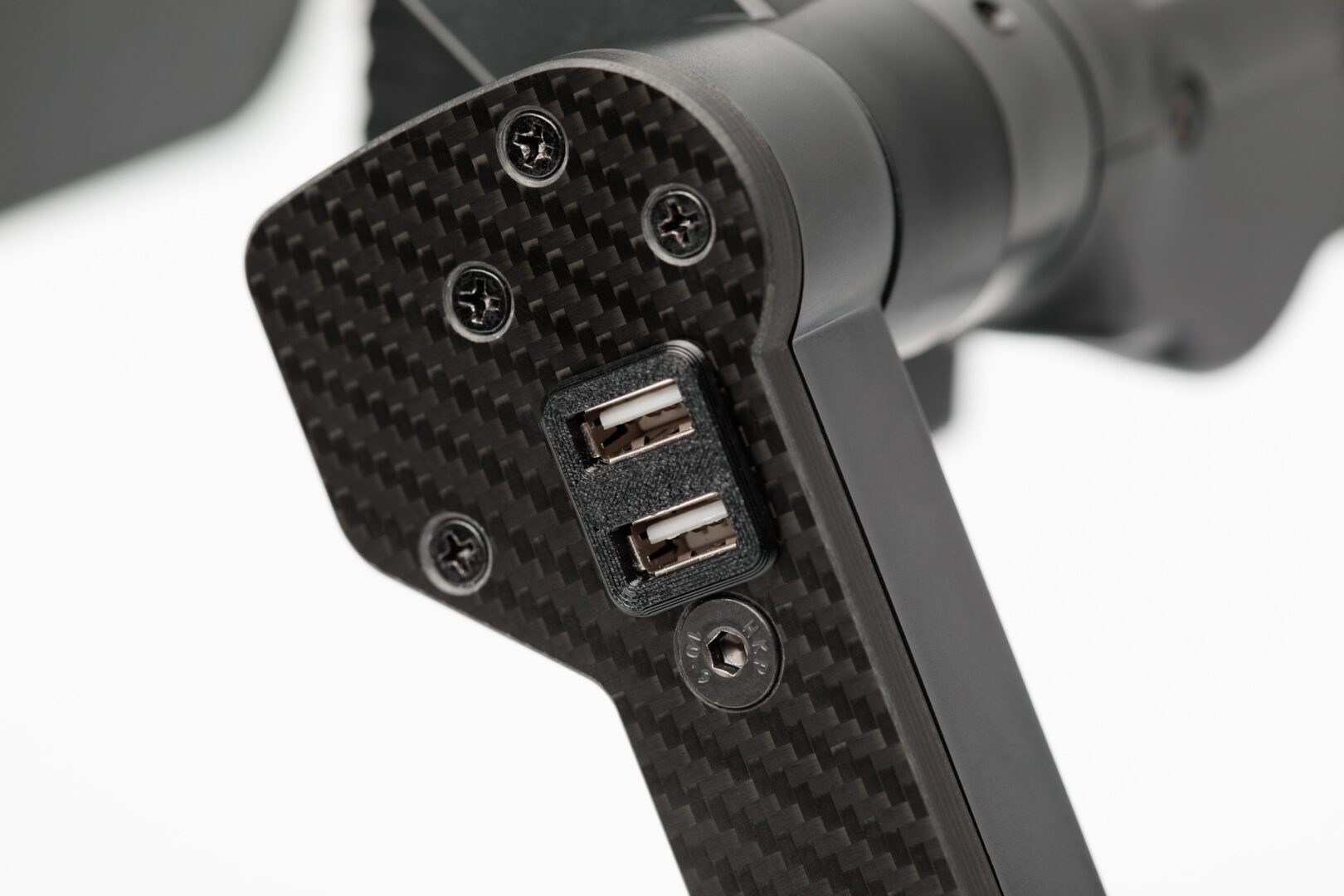
Apollo has two USB-A ports for keyboards, USB drives, and accessories. The Setup Wizard also supports Bluetooth keyboard pairing. With a second monitor connected, open System Settings, select Settings, then Dual Monitor Mode. Choose Duplicate to show the same screen or Extend to use the monitor as additional workspace.
Apps and classroom tools
Which apps are included in the Application Carousel?
The main apps are Magnifier, Annotation, Graphing Calculator, Gallery, and E-Book Reader. In the Carousel, use the Zoom Wheel to enlarge one app or zoom out to view all applications. The Color Wheel changes the Carousel background color.
What can the Graphing Calculator do?
It includes Simple, Scientific, and Graphing modes. Settings let you choose degrees or radians, change graph line width and color, select interface colors, and show or hide standard and polar grids. Use the left and right arrow icons to move the cursor when editing an equation.
How do I find and read e-books?
Open E-Book Reader. My Books opens books already added, Browse Books opens the eBook Library, and Load Books opens a book saved on the tablet. Project Gutenberg provides free books; other supported libraries like Bookshare require an account or subscription. Reading controls include Play/Pause, paragraph navigation, bookmarks, sections, and text highlight color.
How do I add, remove, or reorder apps in the Carousel?
Open System Settings, then Settings, Applications, and Main Apps. Select an application to add or remove its green check mark. A check mark means it appears in the Carousel. To change app order, use Organize in Settings. Applications also lets you create an application folder with the + icon.
Can I add a website to the Carousel?
Yes. Open the site in Microsoft Edge and use its menu to install the site as an app. The manual gives this path: three-dot menu, More tools, Apps, then Install this site as an app. Name and install it, then open Apollo’s Settings, Applications, and Main Apps. Select the installed app so a green check mark appears.
How does Exam Mode work?
Teachers can choose permitted apps, set an exam duration from 15 minutes to 3 hours, and require a PIN to exit. Open System Settings, Settings, then Exam Mode. Start Exam Mode and create the PIN, choose the duration and Exam Applications, and set Exit to Desktop to Off to prevent access to the Windows Desktop during the exam.
Settings care and support
How do I change speech or turn audio off?
Open Settings, then Speech. Adjust Speech Rate to change speed, you can also select a voice. Voice Muted mutes or unmutes all Apollo audio, including speech and system sounds. Speak Menu controls whether menu items are read aloud; turning it off leaves system and click sounds available.
How do I connect to Wi-Fi and update Apollo?
Open Settings, then Wi-Fi, to select a wireless network. For Apollo software updates, open System Settings and select Check for Updates. Follow the on-screen instructions and do not turn Apollo off during installation. Wi-Fi is used for updates and online features.
How do I check the battery, and why might it stop short of a full charge?
System Settings displays battery level and charging status. Microsoft Surface Smart Charging may limit the maximum charge level to help protect battery health. Runtime varies with usage, charging habits, temperature, and storage conditions; the manual does not specify a fixed number of hours per charge.
How should I care for Apollo and its battery?
Use only the supplied power adapter. Keep Apollo away from moisture, direct sunlight, and extreme temperatures; the recommended operating range is 32 to 95 degrees Fahrenheit, or 0 to 35 degrees Celsius. Do not place heavy objects on it or attempt repairs. The Surface battery is not user-replaceable. Contact APH if battery service is needed.
Can I install another screen reader or magnifier?
The manual states that installing screen readers or magnifiers from outside Apollo is unsupported and may interfere with operation. APH Customer Service cannot troubleshoot or resolve issues caused by unsupported accessibility software.
How do I get instructions for IT to add on group policies or district profiles?
Call APH Customer Service at 800-223-1839 or email [email protected], they have instructions and an IT page available upon request.